ProPresenter Lyrics Export

Extract and export worship song lyrics from ProPresenter 7
View the Project on GitHub adamswbrown/propresenterlyricexport
Service Generator Guide
| ← Back to Home | User Guide |
Automate your Sunday service playlist creation from PDF service orders in minutes — or pre-plan services weeks in advance.
Note: Service Generator is an optional advanced feature. The core functionality of ProPresenter Lyrics Export is extracting lyrics from existing playlists. Service Generator extends this by helping you build playlists from PDF service orders or by manually planning services ahead of time.
Table of Contents
- How to Enable Service Generator
- What is Service Generator?
- How It Works (6-Step Workflow)
- Workflow Details
- Plan Service (Pre-Planning Workflow) - Pre-plan services ahead of time
- Troubleshooting
- Understanding Service Libraries
- Service Library Structure
- PDF Format Requirements - How to structure your PDFs
- Service Order Sources
- Getting Help
How to Enable Service Generator
Desktop App:
- Open the desktop app
- Look for the “Service Generator” tab at the top of the window
- Click to open the Service Generator interface
CLI: Service Generator is only available in the desktop app. CLI users should use the standard export commands.
What is Service Generator?
Service Generator takes a PDF service order (from Planning Center, Proclaim, ChurchPlanner, etc.) and automatically populates your ProPresenter playlist with:
- ✓ Song items matched to your library
- ✓ Bible passages linked to presentations
- ✓ Service structure and announcements
- ✓ Kids content properly categorized
Time saved: What normally takes 15-20 minutes of manual playlist building now takes 2-3 minutes.
Watch It In Action
See a complete end-to-end run of Service Generator — from PDF upload to a fully built ProPresenter playlist:
How It Works (6-Step Workflow)
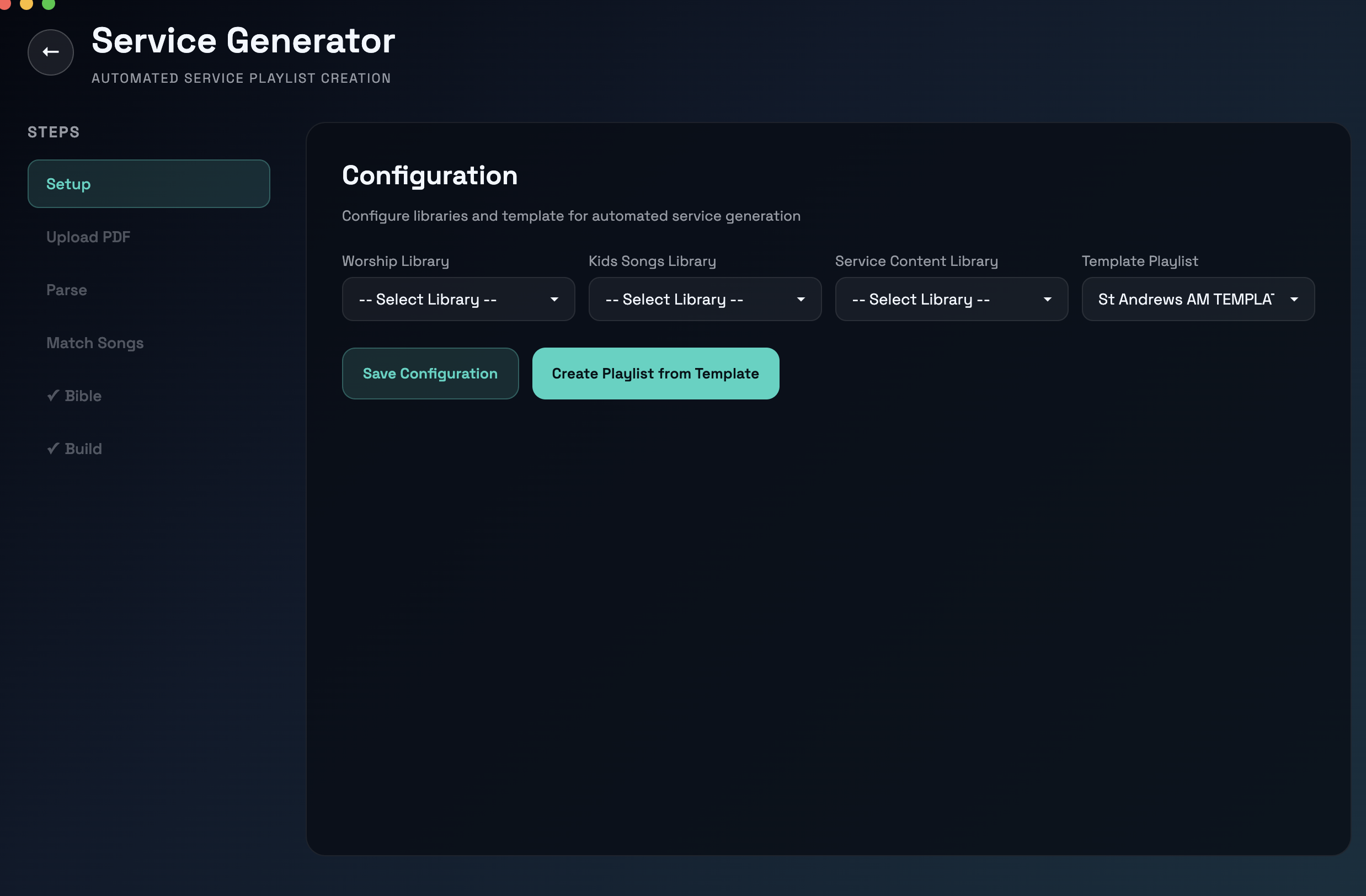
Step 1: Setup (One-Time Configuration)
Configure which libraries and playlists to use:
- Worship Library - Your main song/worship library (e.g., “Worship”)
- Kids Library - Separate library for children’s content (e.g., “Kids”)
- Service Content Library - Library containing Bible verses and service elements
- Target Playlist - The playlist to populate with this week’s service
ProPresenter Setup Required:
Before using Service Generator, create a playlist folder in ProPresenter to hold your generated service playlists:
- Open ProPresenter
- Go to the Playlists panel
- Right-click and select New Folder
- Name it something like “Services” or “Weekly Services”
- This folder will appear as a target location when selecting your Target Playlist
Service Generator will create new playlists inside this folder each week.
How to find your libraries:
- In the desktop app, look at available libraries (loaded during connection)
- You’ll typically have: “Worship,” “Service Content,” “Kids,” “Announcements,” etc.
- Select the ones that match your workflow
Once configured, these settings are saved and remembered for future uses.
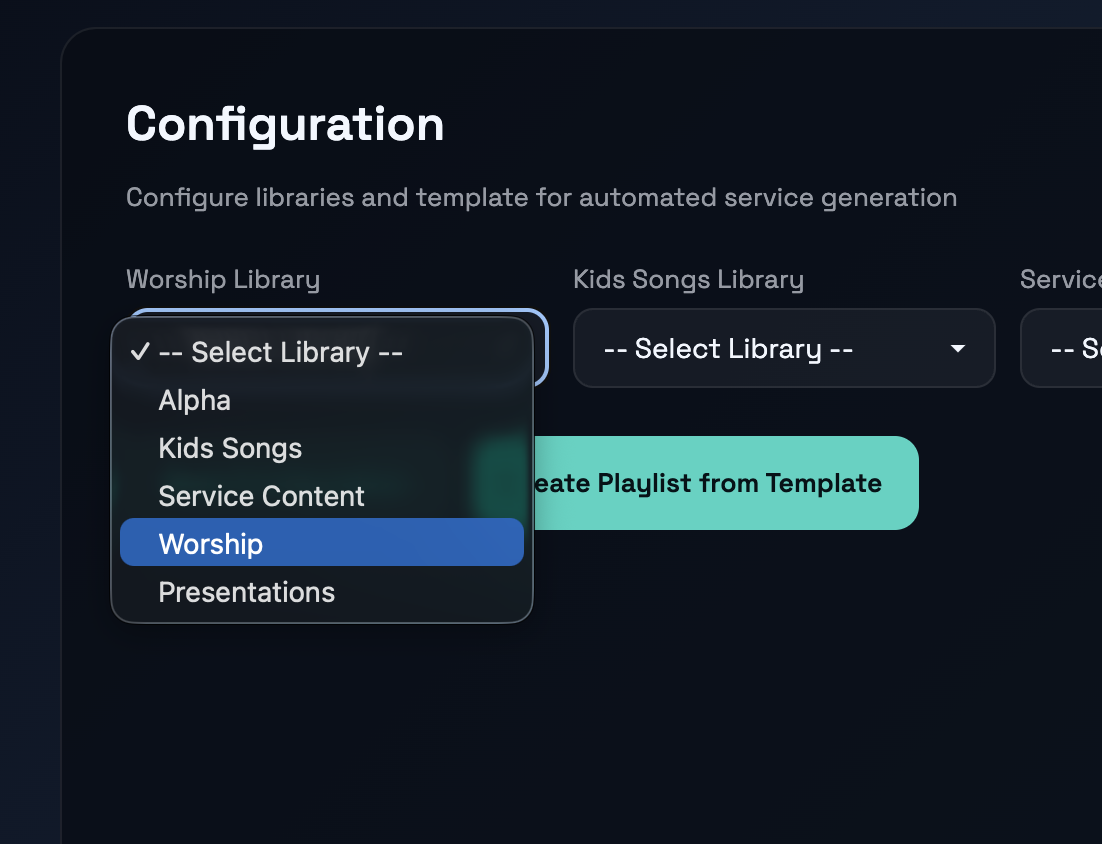
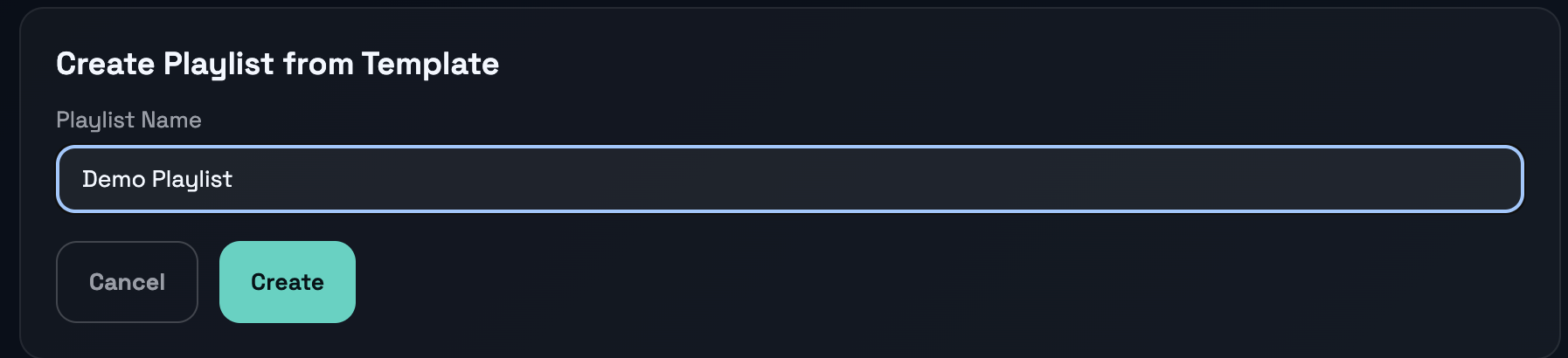
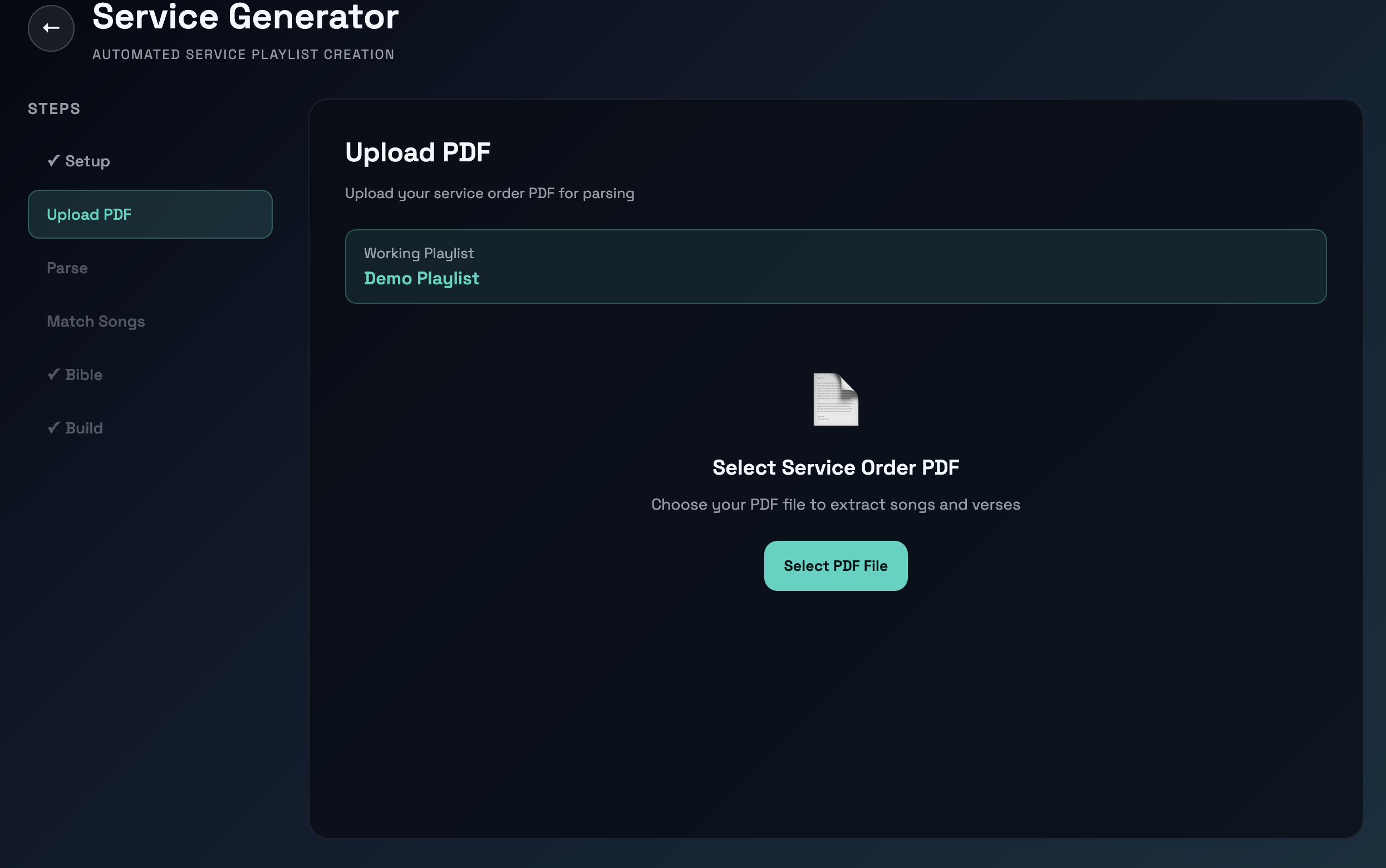
After selecting or creating a working playlist, you’ll see two workflow options:
- Upload PDF — Parse a service order PDF to auto-match songs (Steps 2-5 below)
- Plan Service — Manually assign songs to template slots ahead of time (see Plan Service below)
Step 2: Upload PDF
- Click “Select PDF” or drag-and-drop a PDF file
- Choose your service order (from Planning Center, Proclaim, etc.)
- The app loads and prepares the document
Supported PDF formats:
- Planning Center service orders
- Proclaim service orders
- ChurchPlanner exports
- Any PDF with song titles and scripture references
Step 3: Parse
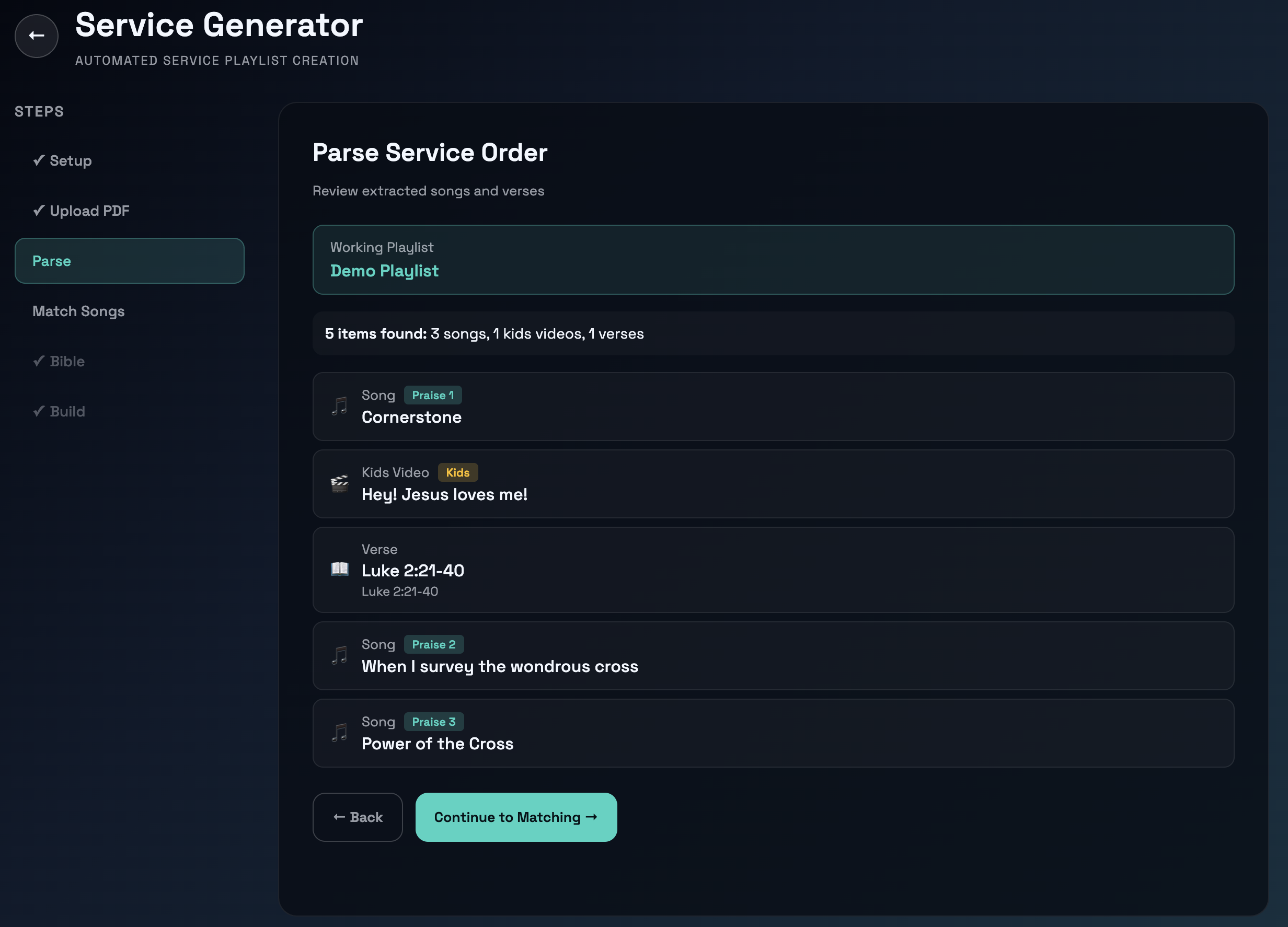
The app automatically extracts from your PDF:
- Song titles - Detected in common list formats
- Bible verses - Identified by book/chapter:verse patterns (e.g., “Romans 12:1-2”)
- Kids items - Marked by keywords (“kids video,” “children’s story,” etc.)
- Service sections - Announcements, prayers, special items
- Worship slots - Automatically categorized (Praise 1, Praise 2, Praise 3)
What you see: A preview list of everything extracted from the PDF, organized by section.
Step 4: Match Songs
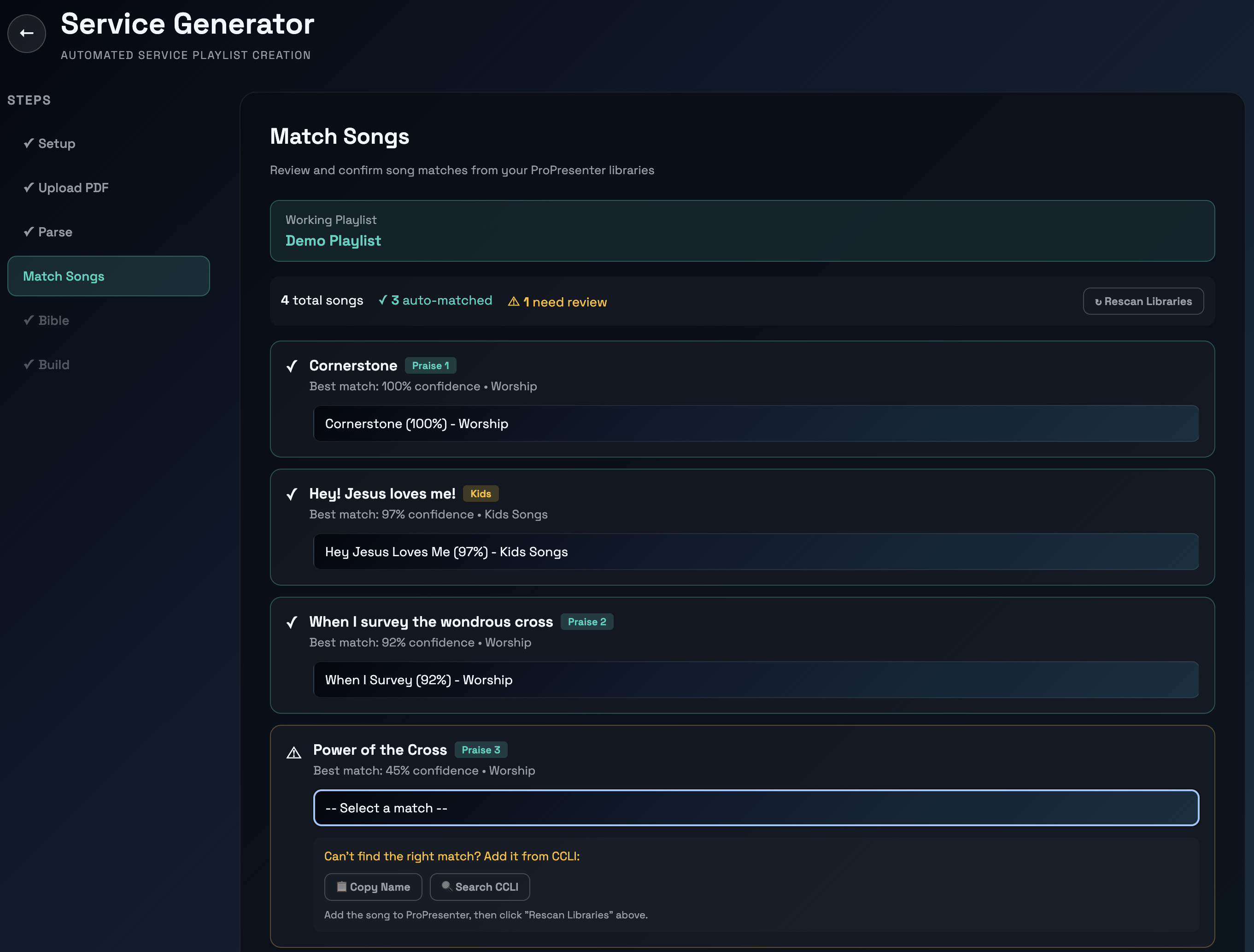
Each extracted song is matched against your Worship Library:
For each song:
- The app shows the best matches with confidence scores
- Green (>90%) - High confidence, auto-selected
- Yellow (70-90%) - Medium confidence, review recommended
- Red (<70%) - Low confidence, probably wrong
What to do:
- Accept green matches - Leave as-is
- Review yellow/red matches - Click the dropdown to select the correct song
- Search Library - Click “Search Library” to search the relevant ProPresenter library (worship or kids) and pick any song
- Save as Alias - Click “Save as Alias” to remember overrides for future services (worship songs only)
- Skip items - Some items might not be songs (announcements, etc.)
Step complete when: All songs are matched or explicitly skipped.
Search Library (Override a Song)
If the right song isn’t in the dropdown (e.g., the order of service says “Be Thou My Vision” but you use a modern version called “You Are My Vision”):
- Click “Search Library” next to the song
- Type the name of the song you actually want to use
- Press Enter or click Search
- Click the correct result to select it
The search is automatically scoped to the relevant library — worship songs search only the worship library, kids videos search only the kids library, and Bible verses search only the service content library. This prevents cross-library confusion.
The selected song replaces the original match and is labelled as “(Override)”. You can then click “Save as Alias” to remember this mapping, so next time the order of service lists “Be Thou My Vision”, it will automatically match to “You Are My Vision.”
Note: “Save as Alias” is only available for worship songs, not kids videos (which are mapped differently).
Song Aliases (Persistent Overrides)
Song aliases let you permanently map an order-of-service title to a specific ProPresenter presentation. This is useful when:
- The order of service uses an old/traditional name but you use a modern version
- A song has a different title in Planning Center vs. your library
- You consistently need to override the same song
To create an alias:
- In Step 4 (Match Songs), select the correct song (via dropdown or Search Library)
- Click “Save as Alias”
- The alias is saved and will auto-match in all future services
To manage aliases from the CLI:
# List all aliases
propresenter-lyrics alias list

# Add a new alias (interactive)
propresenter-lyrics alias add "Be Thou My Vision"

# Remove an alias
propresenter-lyrics alias remove "Be Thou My Vision"
Aliases are stored at ~/.propresenter-words/aliases.json and shared between the Desktop App and CLI.
Can’t Find a Worship Song? Use CCLI Song Select
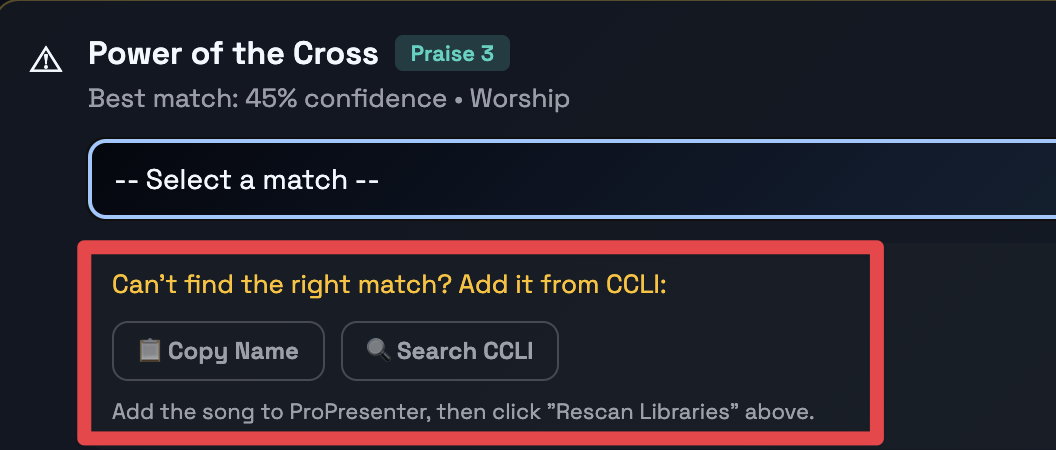
If Service Generator can’t find a worship song in your library, it shows “Copy Song Name” and “Search CCLI” buttons. The key message is: make sure the song has been imported into ProPresenter first.
Step-by-step:
- Copy the song name — Click “Copy Song Name” next to the unmatched song
- Search CCLI — Click “Search CCLI” to open CCLI Song Select in your browser
- Log in and paste the song name to find it
- Note the CCLI Song Number (7-8 digit code)
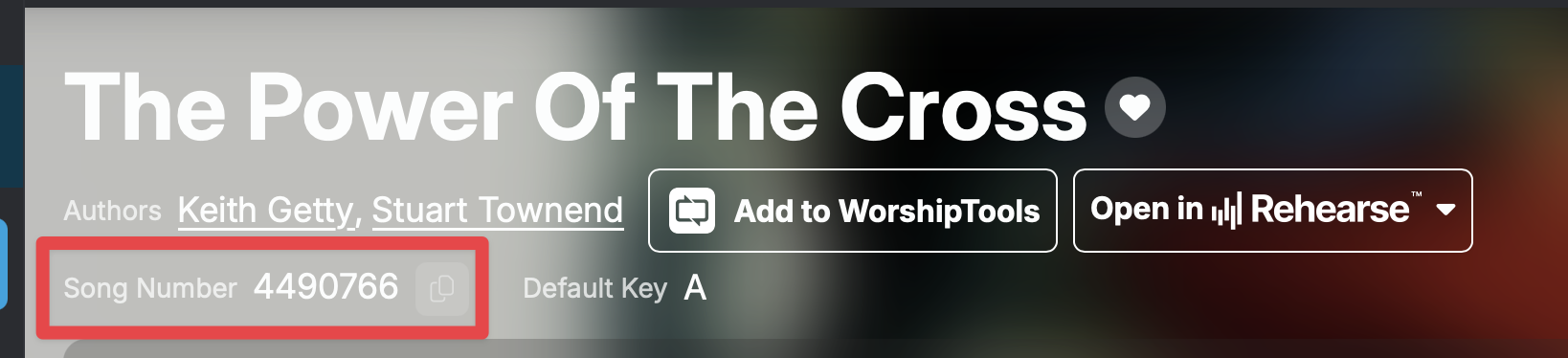
- Import into ProPresenter — Open ProPresenter, search by CCLI number, and import the song into your Worship library
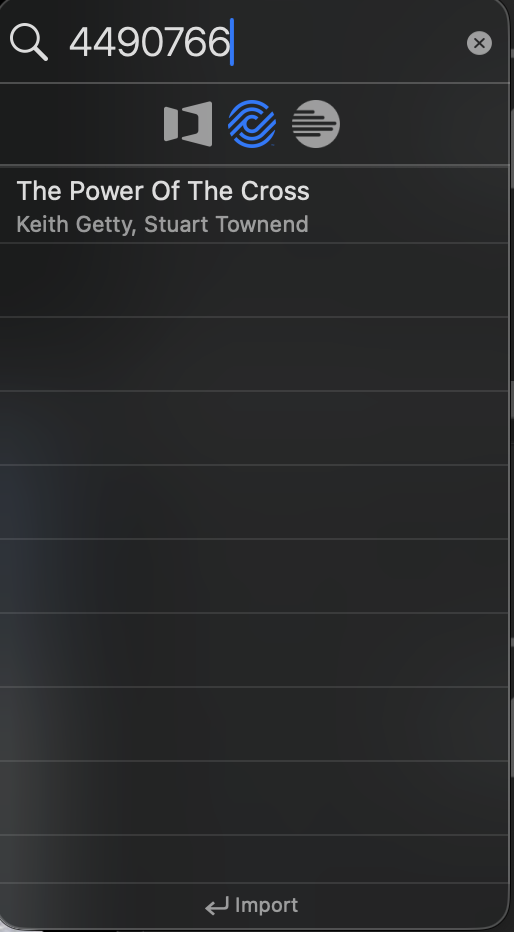
- Rescan — Return to Service Generator and click “Rescan Libraries” to find the newly imported song
Tips:
- Make sure to import into the correct library (your “Worship” library, not a different one)
- If the song still doesn’t match, try a slightly different spelling or search again
- Some songs may have multiple CCLI numbers (different arrangements); try different results if the first doesn’t work
Can’t Find a Kids Song? Search YouTube
Kids songs are typically YouTube videos. When a kids song isn’t found, the app shows “Copy Song Name” and “Search YouTube” buttons. The key message is: make sure it’s been imported into ProPresenter first.
Note: The matcher also automatically searches all libraries as a fallback if the Kids library doesn’t have a match.
Step-by-step:
- Copy the song name — Click “Copy Song Name” to copy the title to your clipboard
- Search YouTube — Click “Search YouTube” to open a YouTube search with the song name
- Import into ProPresenter — Download or link the video, then import it into your Kids library in ProPresenter
- Rescan — Return to Service Generator and click “Rescan Libraries”
You can also skip unmatched kids items — they won’t be added to the playlist.
Step 5: Bible (Verses & Presentations)
Match scripture references to your Service Content library:
For each verse reference (e.g., “John 3:16”):
- The app searches your Service Content library
- Shows matching presentations with confidence scores
- Green - Strong match, auto-selected
- Yellow - Possible matches, pick the right one
- Red - No match found
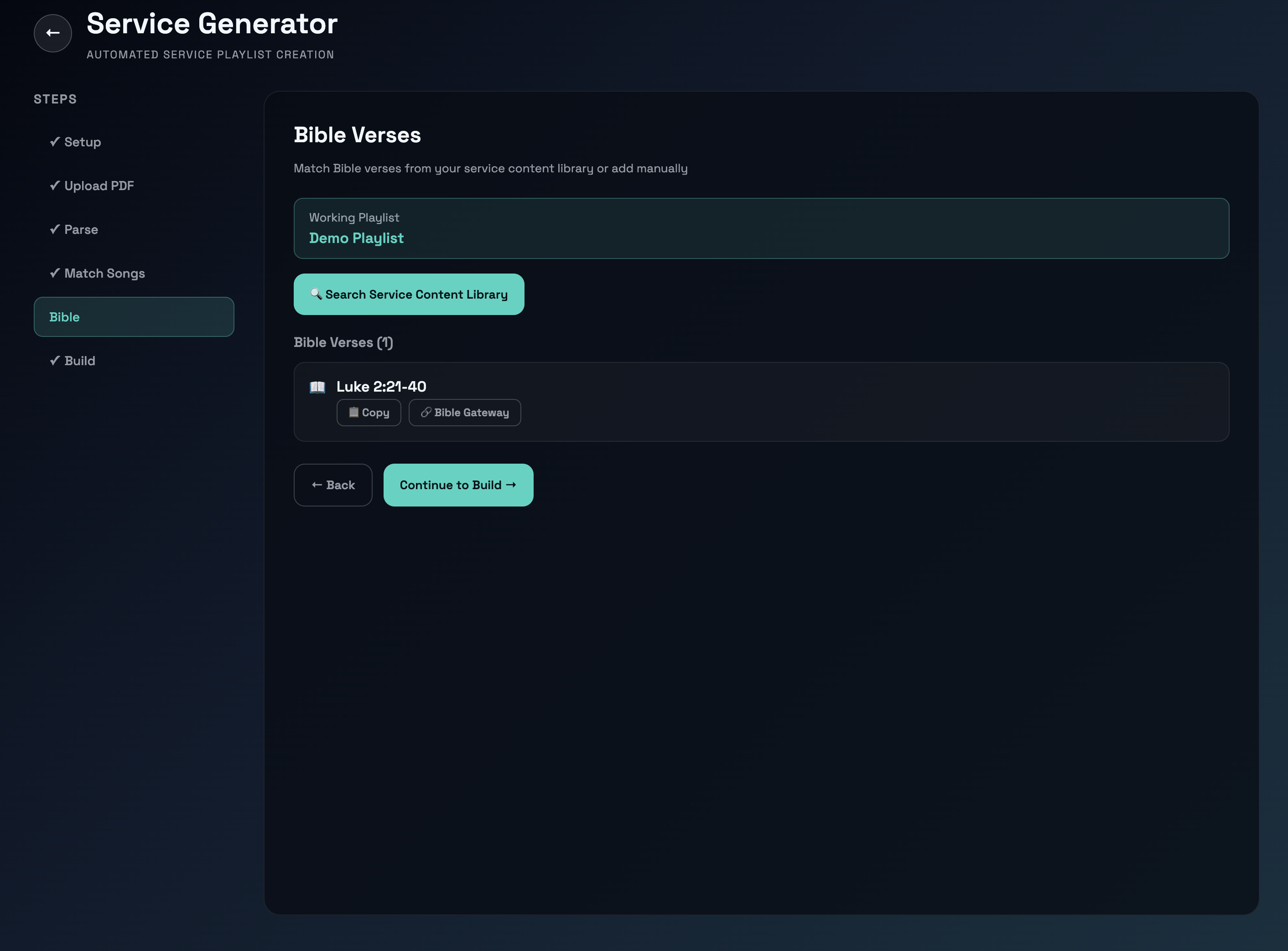
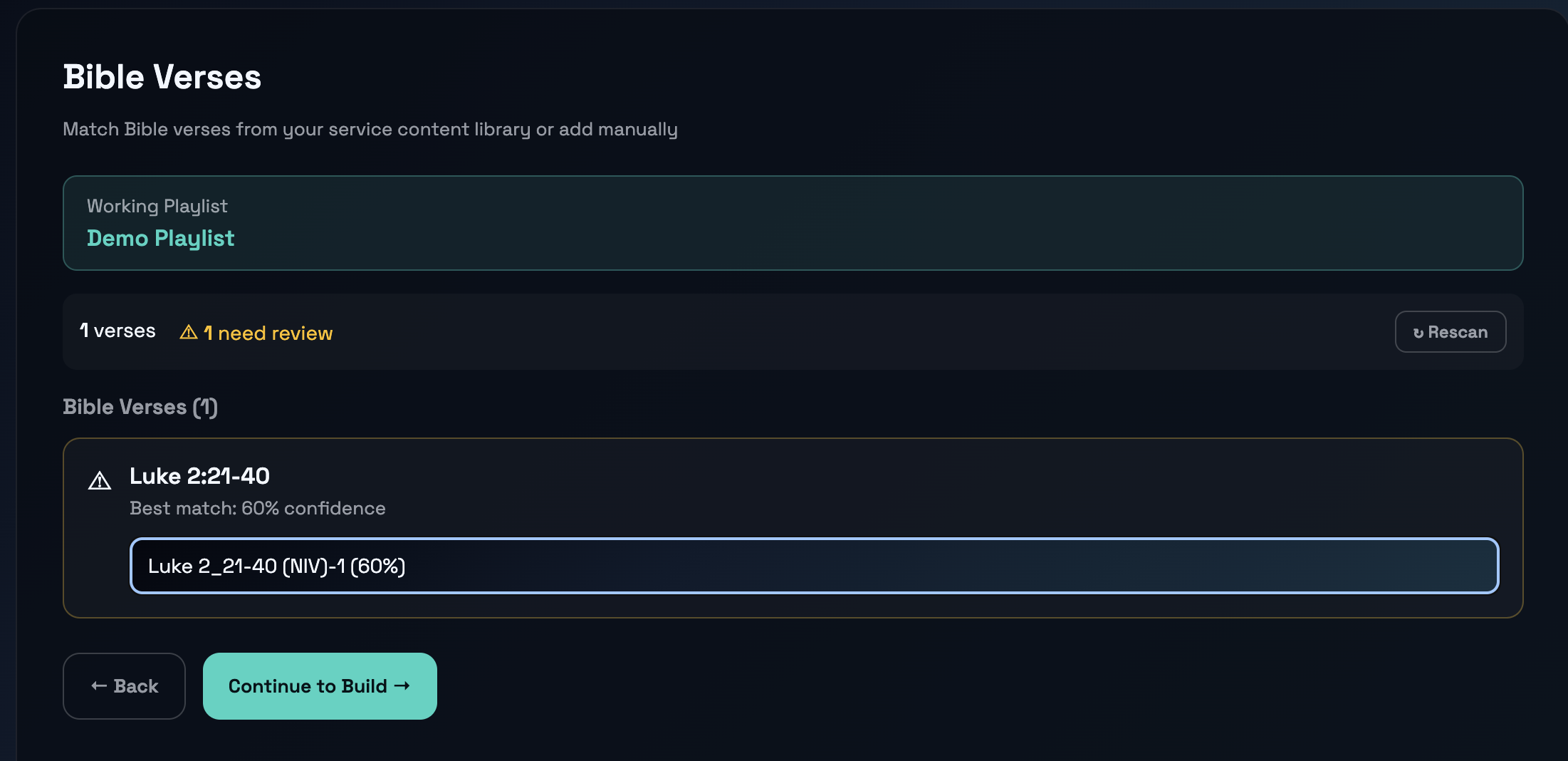
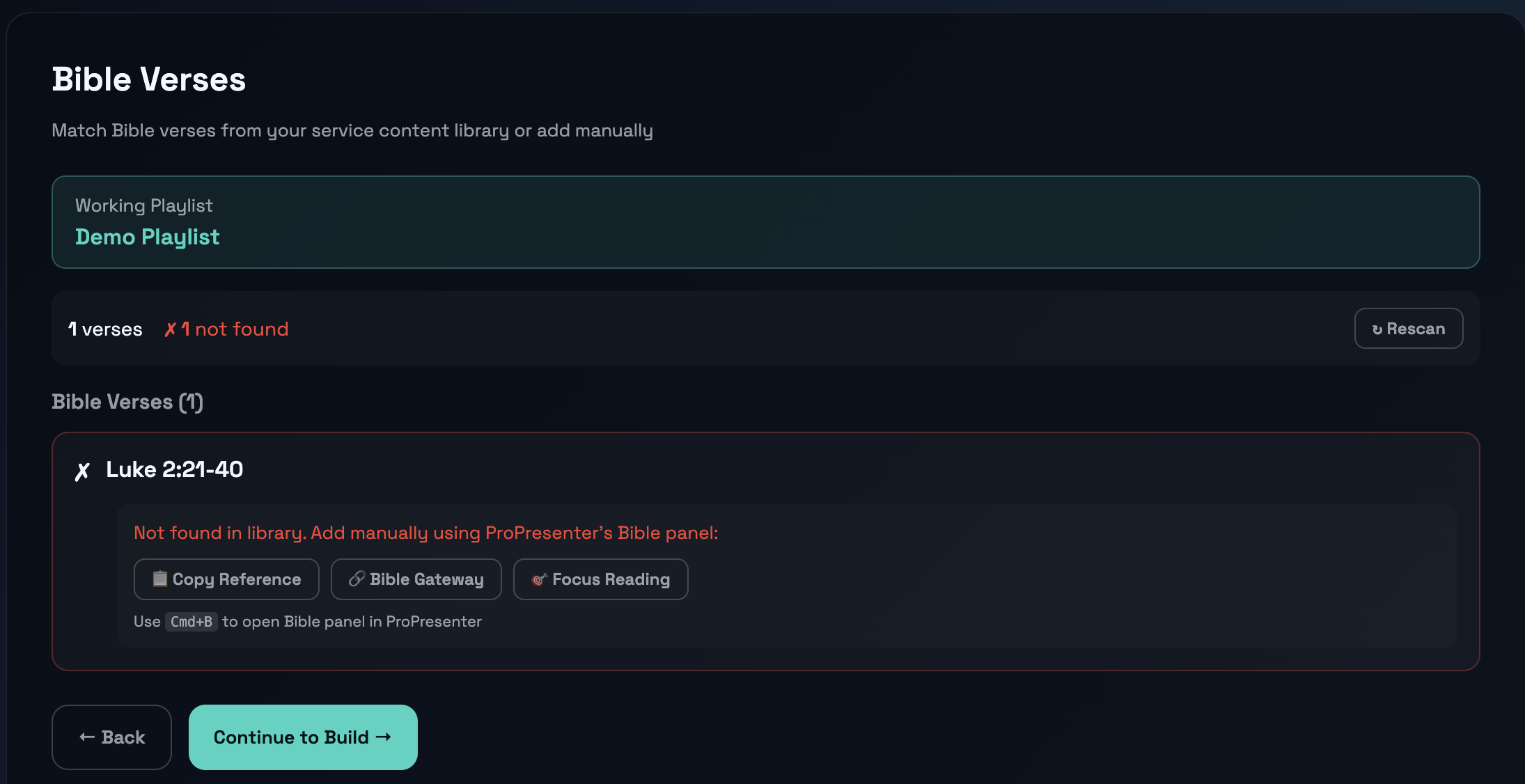
When no match is found, the key message is: make sure the verse has been imported into ProPresenter first. The app shows:
- Copy Reference (first action) — Copy the verse reference to paste into ProPresenter’s Bible panel
- Bible Gateway — Opens the verse in a web browser to preview the text
- Search Library — Search the Service Content library manually
- Focus Reading — Opens the Bible reading panel in ProPresenter (Cmd+B)
Tip: Bible verse matching looks for presentations containing translation markers like “(NIV)”, “(ESV)”, “(NLT)”, etc. in their names. This ensures only Bible verse presentations are matched, not worship songs or other content in the same library.
Adding Bible Verses to ProPresenter
If a Bible verse isn’t found in your Service Content library, you need to create it in ProPresenter:
- Copy the reference — Click “Copy Reference” to copy it to your clipboard (e.g., “Luke 12:35-59”)
- Open ProPresenter — Press Cmd+B to open the Bible panel
- Search for the verse — Paste the reference and find the passage
- Create a presentation — Save it to your Service Content library
- Rescan — Return to Service Generator and click “Rescan” to find the new presentation
Watch this short video to learn how:
Skipping Verses
If you don’t need verse presentations in your playlist (or want to add them manually later), click “Skip Verses” to bypass the verse step entirely. You can always go back from the Build step if you change your mind.
Step complete when: All verses are matched, or the step is explicitly skipped.
Step 6: Build
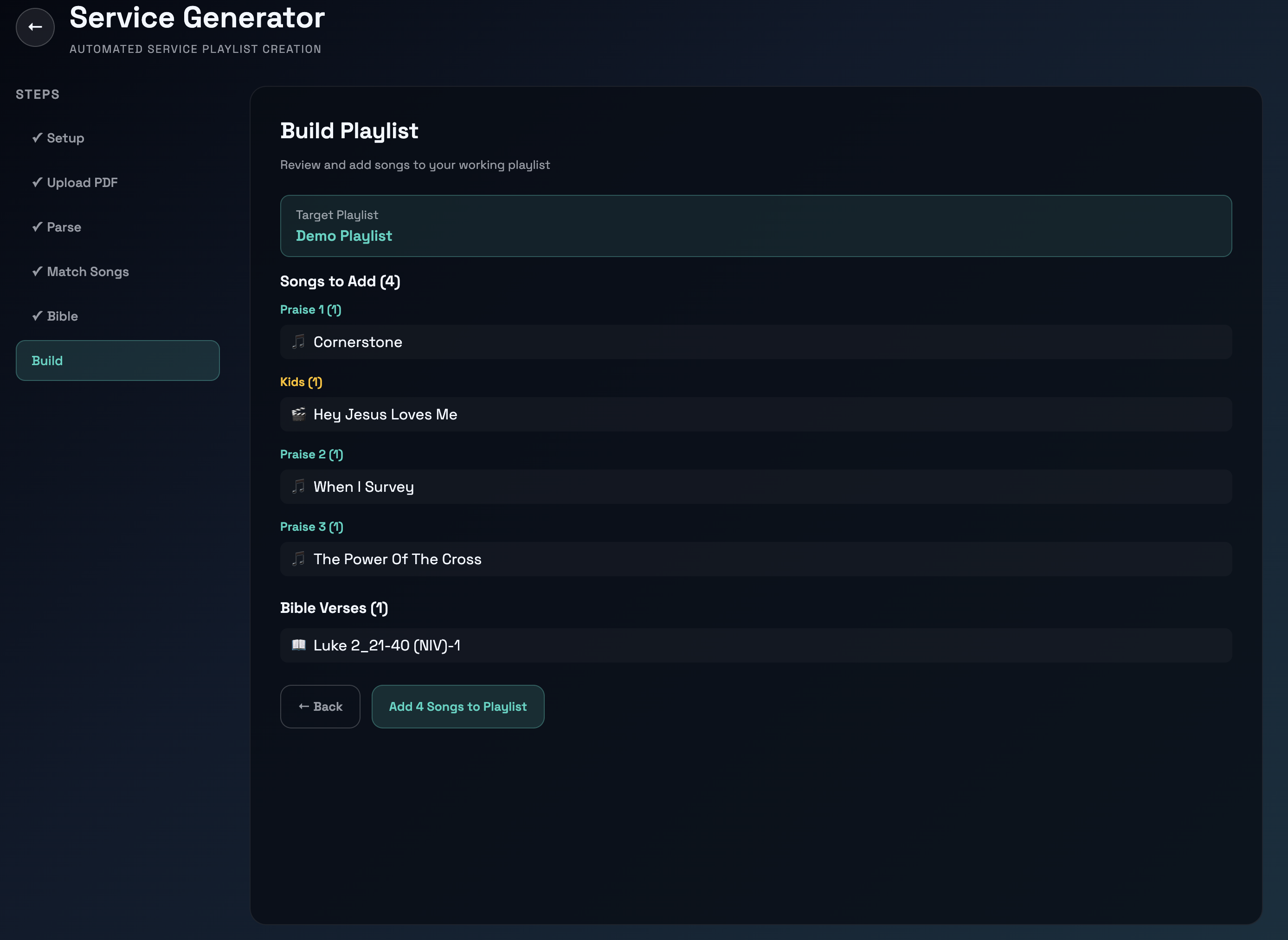
The app automatically creates your playlist with:
- Opening section (pre-roll, announcements)
- Songs in correct order with matched library items
- Bible passages inserted at the right moments
- Service sections and transitions
- Kids content separated and properly organized
Result:
- Your target playlist is populated and ready
- All items are linked to your actual library presentations
- Structure matches your service order
Final touches:
- Drop in your Birthday Bucket, Sermon, and Kids Talk PowerPoints manually
- Use ProPresenter’s “Import PPT as Presentation” for editable slides
Workflow Details
Song Matching
The fuzzy-match engine searches for songs in three ways:
- Exact title match - Looks for exact song names
- Partial match - Finds songs with similar titles
- Phonetic match - Handles spelling variations
Examples:
- “Jesus Loves Me” → Finds your “Jesus Loves Me (2023 Version)”
- “Amazing Grace” → Matches “Amazing Grace (Hymn Arrangement)”
- “Worthy Is The Lamb” → Finds “Worthy Is The Lamb (Newsboys)”
High confidence (>90%):
- Very similar title
- Likely the correct song
- Auto-selected
Manual review (70-90%):
- Possible match
- Could be a different version
- You pick which one
No match (<70%):
- Probably not in your library yet
- See Can’t Find a Song? Use CCLI Song Select in Step 4 above
Bible Matching
Scripture references are matched against presentations in your Service Content library:
Typical references:
John 3:16- Single verseRomans 12:1-2- Verse range1 Corinthians 13- Whole chapterPsalm 23:1-6- Multiple verses
Matching logic:
- Exact book/chapter/verse match
- Same book and chapter (any verse)
- Same book (any chapter)
Common issues:
- Different translation? - “KJV” vs “NIV” in title won’t match; these are different presentations
- Not found? - Create the presentation in Service Content library first, then re-run
- Multiple versions? - You pick which translation/version to use
Worship Slot Detection
The app automatically identifies worship segments:
- Praise 1 - First worship song block
- Praise 2 - Second worship song block
- Praise 3 - Third worship song block
- Kids - Children’s content
How it works:
- Looks for keywords (“Praise,” “Worship,” “Kids,” “Children,” etc.)
- Section breaks in the PDF indicate new slots
- Comments in Planning Center are parsed
Manual override:
- Right-click any song in Step 4 to reassign its worship slot
- Useful if automatic detection isn’t quite right
- Select from: Praise 1, Praise 2, Praise 3, or Kids
Special Services Detection
Service Generator automatically detects special services and adjusts handling accordingly.
Special services detected:
- Remembrance Sunday - (e.g., Nov 9) - Includes memorial hymns and reflective videos
- Christmas Services - (Dec 21-25) - Christmas carols and nativity-related items
- Christmas Eve / Nativity - Special children’s/family services
- Easter Services - (April 18-27) - Passion narratives and Easter-themed content
- Carol Service - Music-focused services
- Communion Services - Including new member welcoming services
- Good Friday - Scriptural meditation and reflection
What happens when a special service is detected:
-
Warning banner appears - “⚠️ Special Service Detected: This is a [service type] service. Service Generator may handle videos and structure differently.”
- Videos handled correctly - In special services, videos are not automatically assumed to be kids content
- Example: “Remembrance Hymn (Video)” in a Remembrance service is matched as a worship song, not kids content
- Only videos explicitly marked with “kids” keyword (e.g., “John 3:16 Song (Kids Video)”) go to the kids library
- Structure awareness - Special services may have different structure than regular Sunday worship
- Notification shows: “Found X items in PDF (remembrance service)”
- Helps you understand why the layout might be different from usual
Practical example:
| Regular Sunday | Remembrance Sunday |
|---|---|
| PRAISE: Jesus Loves Me | PRAISE: Remembrance Hymn (Video) |
| → Matched to Kids Library | → Matched to Worship Library (not kids!) |
| Result: Kids content slide | Result: Hymn video presentation |
If you see unexpected video behavior in special services, remember that the app intelligently distinguishes between:
- Kids videos - Explicitly marked “Kids Video” or “Children’s Video”
- Ceremonial/hymn videos - Used in special services, matched as regular content
Video Placement Recognition
Service Generator recognizes that videos can appear throughout a service, not just in the kids section. Videos are automatically placed in the appropriate worship slot based on their position in the service order.
Common video placements:
| Placement | Example | Handling |
|---|---|---|
| Early (10-25%) | Opening worship song video | Matched to appropriate library based on content |
| Middle (40-60%) | Mid-service reflection video | Placed in Praise 2 slot or after sermon |
| End (80%+) | Closing/finishing video | Placed at end of worship (Praise 3 or closing) |
| Special services | Remembrance hymn video, Christmas carol video | Not assumed to be kids content |
Real data from 62 services:
- 64 videos across services
- 2 videos at the very end as finisher (83% through service)
- 8 videos in the middle as transition piece (40-60%)
- 54 videos in early/praise slots (10-40%)
Examples:
- Christmas Service - “Glory in the Manger” at 83% (finishing video)
- Placed in Praise 3 slot to wrap up service
- Regular Sunday - “If God is for me” at 50% (transition video)
- Placed after prayer/reflection, before final song
- Remembrance Sunday - “Remembrance Hymn” at 71% (closing reflection)
- Placed in Praise 3 slot as closing meditation
How it works:
- Service Generator detects video position in the PDF
- Automatically assigns to the appropriate praise slot
- Videos early in service → Praise 1
- Videos mid-service → Praise 2 or after sermon section
- Videos near end → Praise 3 or closing section
Library routing:
- Non-kids videos (Remembrance hymn videos, closing videos, transition videos) → Searched in Service Content library
- These are service elements, not songs
- Better organized with other service presentations
- Kids videos (explicitly marked with “kids”) → Searched in Kids library
- Regular songs → Searched in Worship library
Examples:
- Christmas Service - “Glory in the Manger” at 83% (finishing video)
- Searched in Service Content library
- Placed in Praise 3 slot to wrap up service
- Remembrance Sunday - “Remembrance Hymn” at 71% (closing reflection)
- Searched in Service Content library (not kids!)
- Placed in Praise 3 slot as closing meditation
- Regular Sunday - “If God is for me” at 50% (transition video)
- Searched in Service Content library
- Placed in Praise 2 slot (bridges sermon and closing worship)
Tips:
- Make sure to populate your Service Content library with video presentations
- Videos as “finishing pieces” work well at the end of services (70%+ position)
- Transition videos in the middle (40-60%) bridge sermon and closing worship
- The app handles placement and library routing intelligently
Before Running Service Generator
- Ensure your libraries are set up:
- Create a “Worship” library with your songs
- Create a “Service Content” library with verses and announcements
- Create a “Kids” library if you have kids content
- Create your target playlist (can be empty)
- Add missing presentations first:
- If you know a song isn’t in your library, add it before running
- Same for Bible verses - create them in Service Content first
- This makes matches more successful
- Use consistent naming:
- Song titles in Planning Center should match your library
- Bible passages should be in format “Book Chapter:Verse”
During the Workflow
- Don’t rush yellow/red matches
- Review them carefully
- Better to skip and add manually than use wrong song
- Use the search feature
- Click the match row to open a search dialog
- Type to find the right song/verse
- Helpful for typos or variations
- Mark as manual carefully
- “Manual” means you’ll add it to ProPresenter later
- Make a note of which items are manual
- Don’t forget to add them!
After Building
- Review the playlist
- Check the order makes sense
- Verify songs are the right versions
- Look for any oddities
- Add remaining items
- Birthday Bucket presentation
- Sermon presentation
- Kids Talk presentation
- Any other special segments
- Customize if needed
- Adjust song order (drag in ProPresenter)
- Add or remove items
- Add transition slides
- Test before Sunday
- Open the playlist in ProPresenter
- Preview each song to ensure correct content
- Check any custom formatting
Plan Service (Pre-Planning Workflow)
Plan Service lets you pre-plan services weeks or months in advance without needing a PDF. This is ideal when you already know the songs for an upcoming service and want to get the playlist ready ahead of time.
How to Use Plan Service
- Complete Step 1 (Setup) as usual — configure libraries, template, and select/create a working playlist
- Click “Plan Service” instead of “Upload PDF”
- You’ll see a planning form with:
- Service Name — e.g., “St Andrews - 25th September”
- Service Date — Pick the date for this service
- Notes — Optional notes about the service
- Template Slots — Each section from your template:
- Praise 1 — Opening worship songs
- Praise 2 — Mid-service worship
- Praise 3 — Closing worship
- Kids — Children’s songs/videos
- Reading — Bible passages / scripture
Adding Songs to Slots
For each slot, click ”+ Add Song” (or “+ Add Scripture” for Reading):
- Type a song name in the search box
- Press Enter or click Search — searches across all configured libraries
- Click a result to add it to that slot
- Add multiple items per slot if needed
Can’t find a song? The same tools from the PDF workflow are available:
- Copy Name — Copy to clipboard for importing into ProPresenter
- Search CCLI — Open CCLI SongSelect to find and download the song
- Search YouTube — Find kids videos on YouTube
- After importing into ProPresenter, search again to find the new song
Saving Plans
Click “Save Plan” to persist your plan to disk. Saved plans appear on the Setup step under “Saved Plans” where you can:
- Load — Reload a plan to edit or build the playlist
- Delete — Remove plans you no longer need
Plans are stored in ~/.propresenter-words/planned-services.json and persist across app sessions.
Building from a Plan
When you’re ready to build the actual ProPresenter playlist:
- Click “Build Playlist” on the Plan step
- Review the summary on the Build step (same as the PDF workflow)
- Click “Add Items” to populate your ProPresenter playlist
The build process works identically to the PDF workflow — songs are inserted into the correct template sections based on their slot assignments.
Typical Plan Service Workflow
- Weeks before: Service leader decides on songs for upcoming service
- Plan ahead: Open Plan Service, assign songs to slots, save the plan
- During the week: Edit the plan if songs change — load, modify, save again
- Service day: Load the saved plan, click Build Playlist, done!
Troubleshooting
No songs found in library
Problem: “No matches” shown for all songs
Solutions:
- Verify the Worship Library is correct (check its name)
- Ensure songs are actually in the library
- Check song titles match what’s in Planning Center
- Try manual search for one song to debug
Bible verses not matching
Problem: Verse references show “No match”
Solutions:
- Verify Service Content library has the verses
- Ensure verse presentations include translation in the name (e.g., “John 3:16 (NIV)”) — this is how the app identifies Bible verses vs. other content
- Check verse format in the PDF (should be “John 3:16” style)
- Use “Search Library” to manually find and select the verse
- Use “Open Bible Gateway” fallback to manually create presentation
Wrong songs getting selected
Problem: High confidence match is wrong
Solutions:
- Songs probably have similar titles in your library
- Check if you have duplicates with different versions
- Manually override each one in Step 4
- Consider renaming songs to be more distinct
PDF won’t upload
Problem: “Invalid PDF” or upload fails
Solutions:
- Ensure it’s a valid PDF file (not corrupted)
- Try opening it in another PDF reader
- Try a different service order (different format)
- Check file size (should be <50MB)
Understanding Service Libraries
Service Generator relies on three types of libraries in ProPresenter. Understanding what each does will help you set it up correctly.
Worship Library
What it is: Your main library containing all worship songs and hymns
What it contains:
- Song presentations (e.g., “Amazing Grace”, “Jesus Loves Me”, “Come Thou Fount”)
- Slide decks with lyrics for each song
- Typically named “Worship,” “Songs,” “Music Library,” or similar
What Service Generator does:
- Reads the PDF to find song titles (e.g., “Come Thou Fount”)
- Searches this library for matching presentations
- When matched, adds them to your playlist in the correct worship slot (Praise 1, Praise 2, Praise 3)
Example: PDF says “Come Thou Fount” → App finds “Come Thou Fount” presentation → Adds to Praise 1 section
Kids Library
What it is: A separate library for children’s songs and activities
What it contains:
- Kids-oriented presentations
- Children’s songs, games, activities
- Typically named “Kids,” “Children,” “Kids Songs,” etc.
What Service Generator does:
- Detects kids items in the PDF (looks for “kids video,” “kids song,” “children’s story,” etc.)
- Searches this library instead of the Worship library
- If no match is found in the Kids library, automatically falls back to searching all libraries
- Adds them to the Kids Talk section with their own categorization
- If still not found, shows “Copy Song Name” and “Search YouTube” buttons (since kids songs are typically YouTube videos)
Example: PDF says “Kids Video: Sing Wherever I Go” → App finds in Kids library → Adds to Kids Talk section
Service Content Library
What it is: A library containing Bible verses, videos, announcements, and service elements
What it contains:
- Bible verse presentations (named like “John 3:16 (NIV)”, “Psalms 56_1-13 (NIV)”, “Luke 2_21-40 (NIV)-1”)
- Video presentations - Remembrance videos, closing/finishing videos, transition videos, etc.
- Announcements and service content
- Prayer slides, special presentations
- Typically named “Service Content,” “Scripture,” “Announcements,” etc.
What Service Generator does:
- For scripture: Extracts scripture references from the PDF (e.g., “Luke 2:21-40”)
- Matches them against presentations in this library
- Uses smart matching to handle different formatting
- When matched, adds them to your Reading section
- For videos: Extracts non-kids videos from the PDF
- Videos without explicit “kids” keyword are matched here
- Examples: Remembrance Hymn videos, closing/finishing videos, transition videos
- When matched, adds them to the appropriate praise slot
Important:
- Bible verses MUST be named in a consistent format:
Book Chapter_Verse (VERSION)format- Examples:
John 3_16 (NIV),Romans 12_1-2 (ESV),Psalms 56_1-13 (NIV) - Or with colons:
John 3:16 (NIV) - Version suffixes are handled automatically
- Videos should be named descriptively:
Remembrance Hymn,Glory in the Manger,Jesus Loves Me (Video), etc.- These will be matched by fuzzy search to your library
Examples:
- PDF says “Luke 2:21-40” → App matches against “Luke 2_21-40 (NIV)-1” → Adds to Reading section
- PDF says “Remembrance Hymn (Video)” → App searches Service Content → Adds to Praise 3 section
Library Setup Checklist
Before using Service Generator, ensure you have:
- ✅ Worship Library with your songs/hymns
- ✅ Kids Library with children’s content (if you have kids items)
- ✅ Service Content Library with:
- Bible verse presentations named consistently (Book Chapter_Verse format)
- Service announcements and special content
- ✅ Target Playlist (empty or with your template structure)
Service Library Structure
Before using Service Generator, you’ll want to organize your ProPresenter libraries to match how the app routes different content types. Service Generator intelligently places songs, scripture references, and videos into the appropriate library based on their type.
Recommended Library Organization
Service Generator works best when you have three libraries set up:
1. Worship Library (Primary - for songs)
- Purpose: Contains regular worship songs
- What goes here: All hymns, contemporary worship songs, and praise songs
- Examples: “Amazing Grace”, “Jesus Loves Me”, “Come Thou Fount”, “Glory Be to God”
- Naming: Use consistent song titles matching your service orders
- Tips: Keep this organized alphabetically or by category for easy browsing
2. Service Content Library (Secondary - for videos and ceremony elements)
- Purpose: Contains videos, transitions, ceremony elements, and service components
- What goes here:
- Hymn/scripture videos (not kids-specific)
- Transitions and visual elements
- Ceremony videos (communion, baptism, etc.)
- Reflective or closing videos
- Any video marked with “(Video)” in the service order
- Examples: “Remembrance Hymn (Video)”, “Communion Reflection”, “Easter Sunrise (Video)”, “Benediction”
- Naming: Use descriptive names that match your service order exactly
- Tips: Prefix with content type for easy identification (e.g., “Video:” or “Ceremony:”)
3. Kids Library (Tertiary - for children’s content)
- Purpose: Contains content specifically for children’s segments
- What goes here:
- Kids songs and music videos explicitly marked for children
- Children’s stories, animated videos, or interactive content
- Kids talks and engagement videos
- Anything marked with “Kids” or “Children’s” in the service order
- Examples: “Kids Video: Sing Wherever I Go”, “Jesus Loves Me (Kids)”, “Bible Story: Good Samaritan”
- Naming: Always prefix with “Kids:” or “Children’s:” to make it clear
How Service Generator Routes Content
Service Generator automatically:
- Songs → Matched in your Worship library
- Scripture references (e.g., “John 3:16”) → Matched in your Service Content library
- Kids items (marked with “Kids” keyword) → Matched in your Kids library
- Videos (marked with “(Video)” in PDF):
- If marked “Kids Video” → Kids library
- Otherwise → Service Content library (for hymn videos, closing videos, etc.)
Setting Up Your Libraries
In ProPresenter Preferences → Libraries:
- Create or identify your Worship library (e.g., “Worship Songs”, “Songs”)
- Create or identify your Service Content library (e.g., “Service Elements”, “Videos”, “Ceremony”)
- Create or identify your Kids library (e.g., “Kids Content”, “Children’s”)
Then in Service Generator settings, specify which library ID corresponds to each:
- Worship Library: Your primary song library
- Service Content Library: Your secondary library for videos and ceremony elements
- Kids Library: Your children’s content library
Why This Structure Matters
Organizing your libraries this way means:
- ✅ Service Generator finds content more reliably
- ✅ Different content types stay logically organized
- ✅ Your searches and browsing become clearer
- ✅ Future features can better understand your content
- ✅ Multi-worship-team environments can share organized libraries
PDF Format Requirements
Service Generator is designed to work with standard PDF service orders. Here’s what it looks for and how to format your PDFs if you’re creating them from scratch.
What Service Generator Extracts
The app automatically detects:
- Song titles
- Looks for lines with song names (typically after “Songs:”, “Praise 1:”, etc.)
- Matches them against your Worship or Kids library
- Scripture references
- Detects patterns like: “John 3:16”, “Romans 12:1-2”, “Psalms 56:1-13”
- Matches them against your Service Content library
- Worship sections
- Recognizes common headers: “Praise 1”, “Praise 2”, “Praise 3”, “Kids Talk”, “Kids Song”, “Kids Video”
- Automatically categorizes songs into the right section
- Special markers
- Detects “Kids” items for the Kids Library
- Identifies announcements and service content
- Recognizes prayers and special segments
PDF Format Best Practices
Service Generator expects PDFs to be structured with clear sections and items. If you’re creating your own service order PDFs (not using Planning Center/Proclaim), follow these guidelines:
Expected PDF Structure
The app looks for a hierarchical structure with:
- Date header - Service date (e.g., “Sunday, February 4, 2026”)
- Section headers - Clear labels for different parts of the service (e.g., “Praise 1”, “Prayer”, “Kids Talk”)
- Items under each section - Songs, scripture, videos, announcements
Example PDF Layout
SUNDAY SERVICE ORDER - February 4, 2026

Opening - Pre Roll
  Announcements (Before and After Service)
  Call to Worship

Praise 1
  Come Thou Fount

Prayer
  Prayer Together

Kids Talk
  Kids Video: Sing Wherever I Go

Praise 2
  Jesus Paid It All

Reading
  John 3:16-17

Sermon
  Message by Pastor [Name]

Praise 3
  Amazing Grace

Closing
  Altar Call
  Announcements (After Service)
The parser expects:
- Section headers on their own line, often with line breaks
- Items indented or listed under their section
- Clear separation between different parts
- One item per line when possible
Song Titles
- List song names clearly, one per line or after a label like “Songs:”
- Use exact names that match your ProPresenter Worship library
- Include artist if helpful for matching: “Come Thou Fount (Hymnary)”
- Case-insensitive matching: “Come Thou Fount” matches “COME THOU FOUNT” or “come thou fount”
Scripture References
- Use standard format:
Book Chapter:VerseorBook Chapter:Verse-Verse - The parser normalizes formatting so these all match:
John 3:16(standard)John 3_16(underscore variant)John-3:16(hyphen variant)
- Examples of correctly formatted references:
John 3:16Romans 12:1-2Psalms 56:1-131 Corinthians 13:4-7
- Scripture references are matched against your Service Content library
Video Items
- Prefix with “Video:” or include “(Video)” in the title
- Specify if it’s for kids: “Kids Video: Sing Wherever I Go”
- Non-kids videos: “Remembrance Hymn (Video)” or “Video: Easter Sunrise”
- The parser detects:
- Kids videos (containing “kids”, “children”, “children’s”) → Kids library
- Other videos (e.g., hymn videos, transitions) → Service Content library
Kids Items
- Prefix with “Kids”, “Children”, or “Kids’” to mark for children’s section:
- “Kids Video: Sing Wherever I Go”
- “Kids Song: Jesus Loves Me”
- “Children’s Story: The Good Samaritan”
- These are automatically routed to your Kids library
- Can include songs, videos, stories, or activities
Section Headers
- Use recognizable headers for automatic categorization:
- Worship/Songs:
Praise 1,Song 1,Opening Song,Hymn - Worship/Songs:
Praise 2,Song 2,Mid-Service Song - Worship/Songs:
Praise 3,Closing Song,Recessional - Kids:
Kids Talk,Kids,Children's Time,Kids' Moment - Reading:
Reading,Scripture,Bible,Lessons and Psalms - Prayer:
Prayer,Prayers for Others,Intercession,Praying Together - Sermon:
Sermon,Message,Reflection,Homily,Sermon Notes
- Worship/Songs:
What Format Works Best
Most Compatible:
- Simple text layout with clear structure
- Section headers clearly separated (with line breaks before/after)
- One item per line
- Consistent song name spelling (matches your library exactly)
- Clear spacing between sections
Less Compatible:
- Multi-column layouts
- Complex formatting with graphics
- Song titles mixed with descriptions
- Inconsistent spelling variations
- Hidden text layers or overlays
Why PDF Structure Matters
Service Generator’s parsing accuracy depends on:
- Clear sections - Can identify where songs, kids items, and videos are
- Consistent formatting - Can distinguish items from labels
- Proper naming - Can match songs and videos to your libraries
- Reasonable formatting - Works with standard PDFs but not heavily-designed layouts
If your PDFs come from Planning Center or Proclaim, they’re already formatted correctly. For custom PDFs, following the structure above will give best results.
File Size and Quality
- File size: Keep under 50MB (typically 1-5MB for PDFs)
- Resolution: Standard PDF quality is fine
- Scanned PDFs: Will work but OCR accuracy may vary
- Password-protected: Must be unlocked first
- Images/graphics: Won’t affect parsing (text extraction only)
Service Order Sources
Service Generator works with PDFs from these services:
- Planning Center - Export service order as PDF
- Proclaim - Export order of worship
- ChurchPlanner - Export service plan
- Generic PDFs - Any PDF with song titles and scripture references
How to export from Planning Center:
- Open your service
- Click “…” menu
- Select “Print / Download”
- Choose PDF format
- Download the file
How to export from Proclaim:
- Open your service
- Click “File” → “Export”
- Choose PDF format
- Save the file
Getting Help
Still have questions?
- 📖 Check User Guide for general app usage
- 🔧 See Troubleshooting for common issues
- 💬 Open an issue on GitHub