ProPresenter Lyrics Export

Extract and export worship song lyrics from ProPresenter 7
View the Project on GitHub adamswbrown/propresenterlyricexport
User Guide
| ← Back to Home | Getting Started |
Complete guide to exporting lyrics from ProPresenter playlists.
Table of Contents
What Does This Tool Do?
ProPresenter Lyrics Export extracts song lyrics from your ProPresenter presentations and exports them to:
- PowerPoint - Formatted slides ready for projection or printing
- Text - Plain text format for lyric sheets or setlists
- JSON - Structured data for custom integrations
Common use cases:
- Create lyric slides for overflow rooms or online streaming
- Generate printed lyric sheets for worship team
- Export setlists for archival or planning
- Create PowerPoint backups of your worship library
Watch It in Action
See the song lyrics export feature demonstrated in this quick video:
Desktop App Guide
Before You Start
⚠️ ProPresenter MUST be configured first!
If you haven’t already, you need to enable ProPresenter’s Network API. See the Getting Started guide for detailed instructions.
Quick checklist:
- ProPresenter 7 is running
- Network API is enabled (Preferences → Network)
- You know the host IP and port (usually
127.0.0.1:1025)
First Launch
- Connect to ProPresenter
- Enter your ProPresenter host (e.g.,
127.0.0.1) - Enter your ProPresenter port (default:
1025) - Click “Connect & Load Playlists”
- The app will detect your ProPresenter version and load all playlists
- Enter your ProPresenter host (e.g.,
- Select a Playlist
- Browse the playlist tree (all folders are expanded by default)
- Search for playlists using the search box
- Click a playlist name to select it
- The breadcrumb path shows your selection
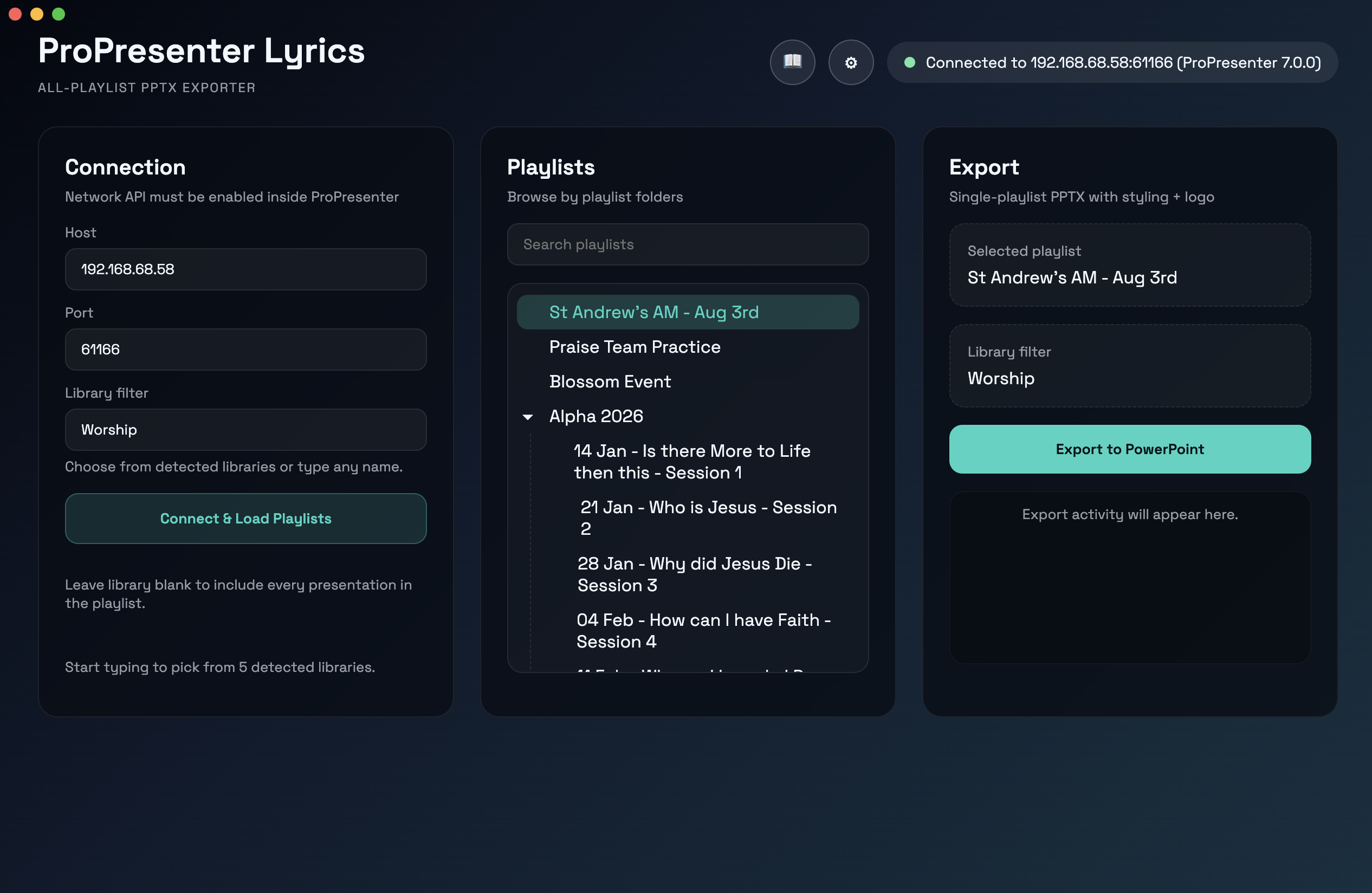
Library Filter
What it does: Only exports songs from a specific library (e.g., “Worship”).
- Leave blank to include all presentations in the playlist
- Type a library name to filter by that library
- The app shows detected libraries as you type
PPTX Export Settings
Open the ⚙ Settings button to customize your PowerPoint exports:
Basic Options
- Include song title slides - Toggle to show/hide title slides before lyrics
- Font family - Choose from 25+ curated presentation fonts
- Green ✓ = installed on your system
- Gray ○ = missing (click to download from Google Fonts)
- Click Refresh after installing new fonts
Text Styling
- Text color - RGB color picker for lyric text
- Font size - Lyric text size (default: 44pt)
- Title size - Song title size (default: 54pt)
- Bold / Italic - Text formatting toggles
Logo
- Logo path - Optional logo image to include on title slides
- Click to browse for
.pngor.jpgfiles - Logo is resized proportionally to fit the slide
Export Process (Lyrics Export)
What happens during export:
- The tool fetches all presentations from your selected playlist
- For each presentation, it extracts lyrics from the slides
- Lyrics are organized by section (Verse 1, Chorus, Bridge, etc.)
- A PowerPoint file is generated with formatted slides for each song
- The file is saved to your chosen location
Steps to export:
- Select a playlist from the tree
- Set library filter (optional) - Only export songs from “Worship” library
- Adjust PPTX settings if needed (fonts, colors, logo)
- Click “Export to PowerPoint”
- Choose save location and filename
- Processing begins (progress shown in log below)
- File is saved when complete
What you get: A PowerPoint file with:
- One section per song
- Title slide for each song (optional)
- Lyrics organized by verse/chorus/bridge
- Your custom styling and formatting
Log View: Shows real-time export progress and any issues encountered.
Nested Playlists
The app automatically expands all nested playlist folders so you can easily see and select playlists at any depth. You can collapse folders by clicking the arrow (▸) if you prefer a condensed view.
Need Help?
- 📖 See the FAQ for troubleshooting
- 🎨 Want to customize your exports? Check the PPTX Export Guide
- 💻 Using CLI? See the CLI Command Reference
- 🎂 Birthday slides? See the Birthday Bucket Guide
- 🔄 Want to automate? Try the Service Generator Guide (advanced)
Basic Commands
Check Connection
propresenter-lyrics status
Shows ProPresenter version and current presentation info.
List Playlists
propresenter-lyrics playlists
Display all playlists with their UUIDs and paths.
List Libraries
propresenter-lyrics libraries
Show all available libraries in ProPresenter.
Get Current Presentation
propresenter-lyrics current
Show details of the currently active presentation.
Get Focused Presentation
propresenter-lyrics focused
Show the presentation with focus in ProPresenter.
Export Commands
Interactive Export (Text)
propresenter-lyrics export
Select a playlist interactively, then export all lyrics as text.
Direct mode:
propresenter-lyrics export <playlist-uuid>
JSON output:
propresenter-lyrics export --json
propresenter-lyrics export <playlist-uuid> --json
Export to PowerPoint
propresenter-lyrics pptx
Interactive mode - select playlist and output filename.
Direct mode:
propresenter-lyrics pptx <playlist-uuid> output-filename
Watch for Changes
propresenter-lyrics watch
Monitor presentation in real-time and display changes as they happen.
Options
Add these flags to any command:
--host, -h <host>      ProPresenter host (default: 127.0.0.1)
--port, -p <port>      ProPresenter port (default: 1025)
--json, -j             Output as JSON instead of text
--debug, -d            Show raw API responses
--help                 Show command help
Examples
# Check connection to remote ProPresenter
propresenter-lyrics status --host 192.168.1.100 --port 61166

# Export specific playlist to JSON
propresenter-lyrics export abc123-def456 --json

# Export PowerPoint with custom host
propresenter-lyrics pptx --host 192.168.1.100 my-service-pptx

# Watch live with debug output
propresenter-lyrics watch --debug
Environment Variables
Avoid typing host/port every time:
export PROPRESENTER_HOST=192.168.1.100
export PROPRESENTER_PORT=1025
propresenter-lyrics status  # Uses env vars
Connection Settings
Finding Your Host and Port
Local Machine:
- Host:
127.0.0.1orlocalhost - Port: Usually
1025(check ProPresenter preferences)
Remote Machine:
- Host: IP address of the ProPresenter computer (e.g.,
192.168.1.100) - Port: ProPresenter’s Network API port
How to Find ProPresenter Settings
- Open ProPresenter 7
- Go to Preferences → Network
- Look for:
- Enable Network API checkbox (must be enabled)
- Port field (note this number)
- Host IP (if remote, find this on the ProPresenter computer)
Network Firewall
If connecting to a remote ProPresenter:
- Ensure the network allows traffic on the ProPresenter port
- The port must be open on the ProPresenter computer’s firewall
- ProPresenter must be running
Troubleshooting
Connection Issues
“Connection refused” or “Network error”
- Verify ProPresenter is running
- Check Network API is enabled (Preferences → Network)
- Verify host and port are correct
- Try from the ProPresenter computer first (use
127.0.0.1)
“Connection timed out”
- Check firewall rules
- Verify the ProPresenter IP address is correct
- Ensure the port is open
- Try
statuscommand with--debugflag for more info
Export Issues
PowerPoint file is empty or has missing lyrics
- Verify the playlist contains presentations
- Check that the library filter matches your songs
- Try with no library filter (leave blank) to see all items
Font not appearing in exported PPTX
- Ensure the font is installed on the system where PPTX will be opened
- Use a system font (Arial, Helvetica, etc.) for guaranteed compatibility
- Check the font dropdown to see installation status
macOS Issues
“App is damaged and can’t be opened”
xattr -cr "/path/to/ProPresenter Lyrics.app"
App won’t launch
- Try right-click → Open (instead of double-click)
- Check System Preferences → Security for app permissions
Windows Issues
“Windows protected your PC”
- Click “More info”
- Click “Run anyway”
- Grant administrator permissions if prompted
Command not recognized
- Ensure the executable is in your PATH
- Use full path:
C:\Tools\propresenter-lyrics-win-x64.exe status
Tips & Tricks
Batch Processing
Use the CLI to automate exports:
#!/bin/bash
for uuid in abc123 def456 ghi789; do
  propresenter-lyrics pptx "$uuid" "output-$uuid"
done
Custom Font Setup
- Download fonts from Google Fonts
- Install on your system
- Use the font dropdown in settings
- Click “Refresh” after installation
PPTX Styling
- Dark slides: Use light text colors (white, light gray)
- Light slides: Use dark text colors (black, dark gray)
- Readability: Keep font sizes 40pt+ for audience visibility
- Branding: Add your logo on title slides for consistency
Remote ProPresenter
For a computer on your network:
- Find its IP (Windows:
ipconfig, macOS:ifconfig) - Enable Network API on that computer
- Connect from another machine using that IP and port
- Ensure network allows the connection