ProPresenter Lyrics Export

Extract and export worship song lyrics from ProPresenter 7
View the Project on GitHub adamswbrown/propresenterlyricexport
What Comes Next: Remaining Artifacts & Content
| ← Back to Home | User Guide |
After exporting your song lyrics to PowerPoint, you’ll likely want to add other content to complete your Sunday service presentation. This guide covers importing the remaining artifacts that ProPresenter Lyrics Export doesn’t handle directly: sermon content, kids’ content, and birthday blessings.
Table of Contents
- Overview: What Gets Added Later
- Sermon Content (Main Service)
- Kids’ Sermon Content
- Birthday Bucket / Birthday Blessings
- Best Practices
Overview: What Gets Added Later
ProPresenter Lyrics Export focuses on one thing: extracting and exporting song lyrics from your worship library. But a complete Sunday service presentation in ProPresenter typically includes:
| Content Type | Method | Format | Purpose |
|---|---|---|---|
| Song Lyrics | ProPresenter Lyrics Export | PPTX + Audio | Congregation singing |
| Sermon | Import PowerPoint as Images | PPTX → Images | Main message |
| Kids’ Content | Import PowerPoint as Images | PPTX → Images | Children’s service |
| Announcements | Service Generator (optional) | Text + Images | Important notices |
| Birthday Blessings | Import PowerPoint | PPTX (editable) | Celebrate congregants |
This guide focuses on the manual imports (Sermon, Kids’ Content, Birthday Blessings) that come after you’ve exported your lyrics.
Sermon Content (Main Service)
Your sermon is typically delivered with visual support—slides, graphics, video, or photo backgrounds. Here’s how to bring that into ProPresenter.
Import PowerPoint as Images (Recommended)
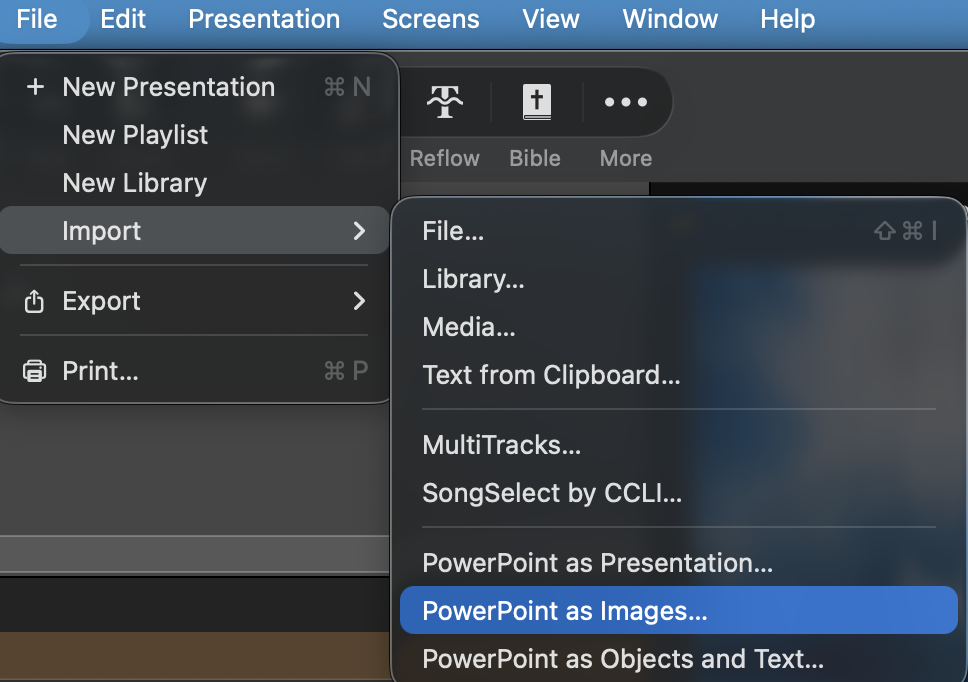
The easiest way to import your sermon slides is to use ProPresenter’s Import PowerPoint as Images feature. This converts each slide in your sermon PowerPoint into an image-based slide in ProPresenter.
Step-by-Step: Import Sermon PowerPoint
- Prepare your sermon PowerPoint
- Create your sermon slides in PowerPoint as usual
- Save the file (e.g.,
Sermon_2026_02_09.pptx) - No need to export individual images—ProPresenter handles the conversion
- In ProPresenter:
- Right-click on your target playlist (or service playlist)
- Select Import → PowerPoint as Images
- Browse to your sermon PowerPoint file
- ProPresenter will convert each slide to an image and create slides in order
- Position in playlist
- Drag the imported sermon presentation to the correct position in your service flow
- Typically between songs or as a dedicated sermon section
Best Practices for Sermon PowerPoint
- Resolution: Design slides at 1920x1080 for optimal projection quality
- Aspect ratio: Match your presentation display (usually 16:9)
- Fonts: Use standard fonts that render well when converted to images
- Organization: Keep one PowerPoint per sermon for easy reuse and updates
When to Use PowerPoint as Images Import
✓ Sermon PowerPoint presentations ✓ Any PowerPoint slides you want displayed as static images ✓ Canva or other tools that export to PowerPoint format ✓ Multi-slide teachings with visual progression
Kids’ Sermon Content
Kids’ content follows the same import process as main sermon content, using ProPresenter’s Import PowerPoint as Images feature.
Import Kids’ PowerPoint as Images
Kids’ sermons often rely on colorful graphics and engaging visuals. Import them the same way as main sermon content:
- Prepare your kids’ PowerPoint
- Create your kids’ sermon slides in PowerPoint
- Save the file (e.g.,
Kids_2026_02_09.pptx)
- In ProPresenter:
- Right-click on your Kids Library or kids playlist
- Select Import → PowerPoint as Images
- Select your kids’ PowerPoint file
- ProPresenter converts each slide to an image
- Position in service
- Place the imported kids’ section where your children’s service occurs
- Typically right after opening songs and before kids dismiss
Special Considerations for Kids’ Content
- Bright colors: Kids’ content should be visually engaging
- Large text: If text is included, use fonts ≥32pt for kids to read
- Shorter sequences: Kids’ attention spans are shorter—fewer slides work better
- Consistency: Use the same design style week-to-week for brand recognition
Birthday Bucket / Birthday Blessings
Birthday Blessings is a special feature in ProPresenter that displays birthday announcements with customizable text and animations. Rather than importing static images, you’ll work with editable PowerPoint presentations that you can customize.
Method: Import PowerPoint for Birthday Bucket
Birthday Blessings work best when imported as a PowerPoint presentation, which allows you to:
- Edit names and dates directly
- Customize the greeting message
- Adjust fonts, colors, and animations
- Reuse the template each week
Step-by-Step: Import Birthday Blessing PowerPoint
- Prepare your PowerPoint template
- Create a PowerPoint file with placeholder slides (one per birthday)
- Each slide should have:
- Name (editable text field)
- Birthday date or age
- Custom message or greeting
- Optional: Birthday graphics or animations
- In ProPresenter:
- Right-click on your target playlist
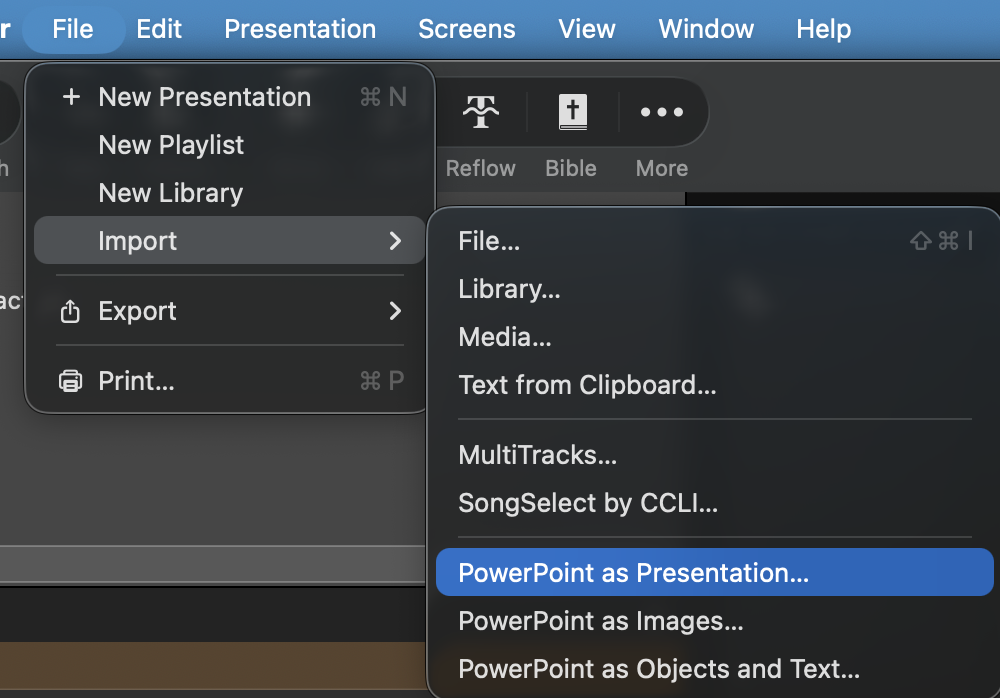
- Select Import → PowerPoint as Presentation
- Browse and select your birthday blessing PowerPoint
- ProPresenter converts each slide to an editable presentation
- Adjust formatting in ProPresenter ⚠️
- Important: PowerPoint imports often require formatting adjustments
- Double-click each slide to edit in ProPresenter
- Check and fix font sizes, positions, and text alignment
- Verify colors and backgrounds imported correctly
- Update the name fields for this week’s birthdays
- Position in service
- Place birthday slides near the end of your service
- Often used during announcements or closing time
- Preview on your actual projection display before the service
PowerPoint Template Tips
Template Structure:
Slide 1: Birthday Blessing Template (title/instructions)
Slide 2: [Name] Birthday Slide
Slide 3: [Name] Birthday Slide
...
Editable Elements:
- Text boxes with names (change names week-to-week)
- Dates or age fields
- Custom messages
- Birthday graphics or backgrounds
⚠️ Formatting Warning:
ProPresenter’s PowerPoint import frequently changes formatting. Always review and adjust after importing:
- Font sizes may shrink or change
- Text alignment and positions may shift
- Colors may appear differently
- Animations may not import correctly
- Text boxes may resize unexpectedly
Fix these issues directly in ProPresenter’s editor before service.
Best Practices for Birthday Blessings
✓ Use consistent formatting across all birthday slides ✓ Keep text large and readable from a distance (≥28pt) ✓ Include a default slide for “other birthdays” in the month ✓ Add subtle animations for visual interest (optional) ✓ Update the template 1-2 weeks before using (not during service)
Best Practices
Workflow Integration
Your complete Sunday service workflow should look like:
- Export lyrics → ProPresenter Lyrics Export (creates PPTX with song lyrics)
- Add sermon content → Import PowerPoint as Images (you handle this)
- Add kids’ content → Import PowerPoint as Images (you handle this)
- Add birthday blessings → Import PowerPoint template (you handle this)
- Arrange playlist → Drag items into service order in ProPresenter
- Test and preview → Run through the service once before Sunday
File Organization
Keep your content organized for faster workflow:
2026_02_09_Sunday_Service/
├── Lyrics_Export.pptx          (from ProPresenter Lyrics Export)
├── Sermon_2026_02_09.pptx      (import as images in ProPresenter)
├── Kids_2026_02_09.pptx        (import as images in ProPresenter)
└── Birthday_Blessing_2026_02.pptx
Quality Checklist Before Service
- All PowerPoint files imported and in correct order
- Playlist arranged in correct service flow
- Sermon slides display properly on projection
- Kids’ content is age-appropriate and visible
- Birthday slides have correct names and dates
- All fonts are readable at viewing distance
- Audio/video (if used) plays without issues
- Tested presentation on actual display (not just laptop)
Related Guides
- PPTX Export - Customize your song lyric exports
- Service Generator - Automate playlist building from PDFs (alternative workflow)
- ProPresenter Setup - Initial ProPresenter configuration
Need Help?
- 📖 Check the FAQ for common import issues
- 🎨 See PPTX Export Guide for customizing lyrics
- 💬 Open an issue on GitHub